Tenorshare iTransGo offers a solution for transferring supported data, including contacts, photos, and videos, to an iPhone Duo even after setup.
NEW YORK, NY, October 19, 2026 /24-7PressRelease/ -- Switching from Android to iPhone Duo means moving important personal data to a new device. For users wondering how to transfer data from Android to iPhone Duo, Tenorshare iTransGo offers a computer-based solution to help migrate supported data, including contacts, photos, and videos. It also provides an alternative for users who have already completed their iPhone setup and want to transfer data without resetting their device, subject to compatibility.
How to Transfer Data from Android to iPhone Duo After Setup
Apple's Move to iOS app helps users migrate supported data during the initial iPhone setup. However, users who have already configured their iPhone may need to erase the device before using this method.
Tenorshare iTransGo offers another option for users who want to transfer supported data after setup. By connecting both phones to a computer, users can follow the on-screen instructions to select and migrate compatible data without having to reset an already configured iPhone.
Key Features of Tenorshare iCareFone iTransGo
For users preparing to transfer data from Android to iPhone Duo, iTransGo offers several useful features, depending on device and system compatibility:
Transfer After Setup: Move supported data to an iPhone that has already been configured without requiring a factory reset for the transfer process.
Selective Data Transfer: Choose the supported data types you want to move instead of transferring everything.
Multiple Data Types: Transfer supported content such as contacts, photos, and videos.
Computer-Based Workflow: Connect both devices to a compatible Windows PC or Mac and follow the software's instructions.
How to Transfer Data from Android to iPhone Duo Using iTransGo
Users can follow these steps to migrate supported data with Tenorshare iCareFone iTransGo.
Step 1: Download and install Tenorshare iTransGo on a compatible computer.
Step 2: Connect the Android phone and iPhone to the computer using compatible cables. Follow the on-screen instructions and grant any required permissions.
Step 3: Select the supported data types you want to transfer and review your selection.
Step 4: Start the transfer and keep both devices connected until the process is complete.
Users should check the latest system requirements and device compatibility before starting.
Choosing a Data Transfer Method
Move to iOS is an option for users migrating data during the initial iPhone setup. iTransGo may be more suitable for users who have already configured their iPhone or want to select specific data types for transfer.
The right method depends on the device setup status, the data that needs to be moved, and compatibility requirements. Reviewing these factors beforehand can help users choose an appropriate way to transfer data from Android to iPhone Duo.
About Tenorshare
Tenorshare develops software solutions for mobile devices and computers, including tools for data transfer, file recovery, system repair, and device management. Its iTransGo software helps users migrate supported data between Android and iOS devices.
Learn more: https://www.tenorshare.com/products/icarefone-itransgo.html
Website: https://www.tenorshare.com/
YouTube: https://www.youtube.com/@TenorshareOfficial
Facebook: https://www.facebook.com/TenorshareOfficial/
News Source: Tenorshare Co. Ltd.
Read the full story here: https://www.24-7pressrelease.com/press-release/539670/how-to-transfer-data-from-android-to-iphone-duo-tenorshare-itransgo-simplifies-the-process
Press Release Service and Press Release Distribution by 24-7 Press Release Newswire
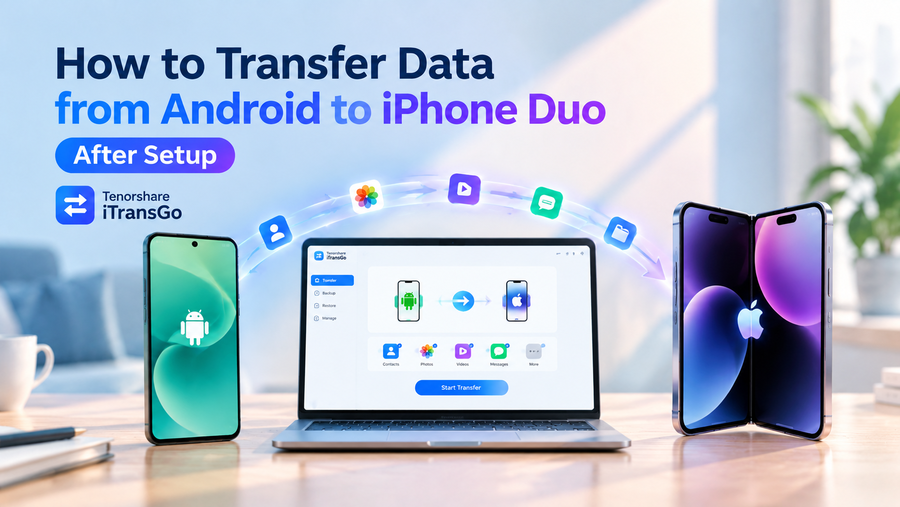
How to Transfer Data from Android to iPhone Duo: Tenorshare iTransGo Simplifies the Process
24-7 Press Release Newswire

This is a paid placement. For further inquiries, please contact 24-7 Press Release Newswire directly.
